

Learning Objectives
After this you will be able to;
- Describe what base data is required when setting up Skedulo
- Create region records to sort your data geographically
- Categorise various records for filtering, sorting and organising data
What is base data?
Base data is a collection of records that are needed in order to start creating resources, planning work and utilising filters to sort and display your data. System administrators are required to manage Skedulo base data when setting up Skedulo for the first time, or when the business expands into new areas or services. The base data covered in this lesson will be used to organise your deskless workers and the work they perform geographically, while also categorising various types of records for filtering, reporting and viewing your data.
Things to consider before playing around
- You will need administrator access to your Skedulo environment. If you are just starting out with Skedulo you can contact your implementation team to get your user record set up. If you are an existing customer, we strongly advise you contact your system admins to get approval before playing around.
- You will need the right permissions to create various base data records and configure picklist values. The person setting up your user access can ensure you have the right permissions.
- Make sure you are playing around in a demo or testing environment. If your solution is already live or foundation data has already been created in your system, then some damage could be done. Best to check with your admins or implementation team to see if you have the green light to get some hands on experience.
- Make sure you consult with your team before you start creating demo data in your environments. If you have a team of 5 people and you are all creating your own testing data it could get messy quickly. To safely explore Skedulo, we find customers like to create a testing environment for everyone to learn how it all works, before coming together as a team to talk about findings and agreeing on the final solution to be set up in the production environment.
Meet ‘I Choose Me’
I Choose Me is a health and wellbeing company that operates in the US and just opened some new offices in Australia and the UK! Our example company offers multiple service types such as mobile personal training, group fitness classes, nutritional advice and various education programs that promote health and wellbeing at fixed locations. It’s a mid sized company with about 450 employees positioned across the USA and Australia. Julia and Robert are system administrators responsible for getting Skedulo set up and entering in base data to meet their business needs.

I Choose Me was perviously using simple time-tracking software and spreadsheets to manage their deskless workforce, and are currently implementing Skedulo. Julia and Robert have obtained their admin user access to the solution, gone through the Skedulo fundamentals training and consulted with the business documenting their needs and objectives. It’s time to start mapping out the base data that is required to get their system up and running!
Configuring regions
Julia and Robert understand that Skedulo region records are required before they start adding in their resource records and creating any work, so this is the first place they start.
I Choose Me operates across multiple geographical zones throughout the USA, UK and Australia. Because I Choose Me operates across various countries, cities and zones, they need to be mindful of the structure ensuring they split up the region records for each timezone their business operates in. Julia and Robert have also a created a naming convention breaking down the Country – City – Zone, to support the categorisation of their region records, assisting schedulers to find their regions quickly.
- USA – New York
- USA – Chicago
- USA – Denver
- USA – San Francisco
- USA – Seattle
- Australia – Sydney
- Australia – Melbourne
- UK – London
Creating the region records
Okay so they know what regions records they need, so let’s log into the Skedulo Web App to start creating the records!
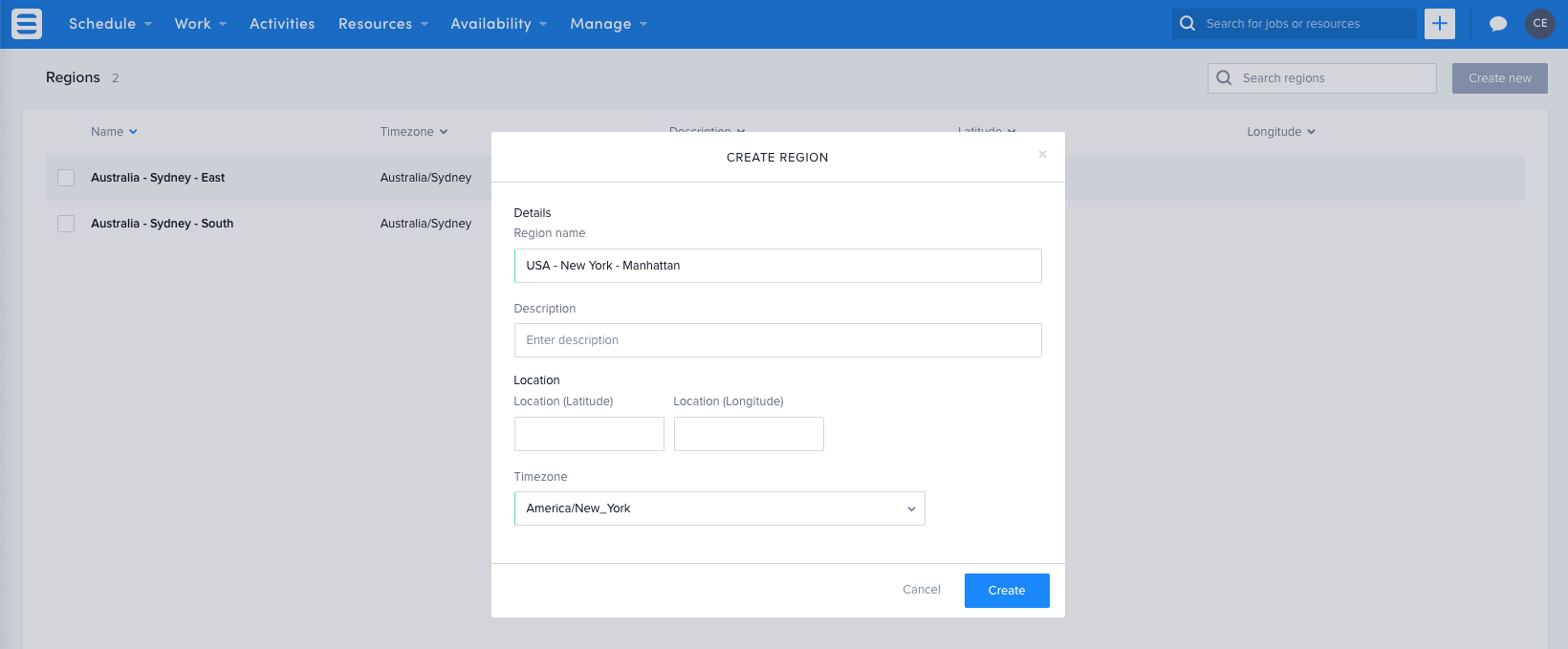
- Using the top navigation bar, click the ‘Manage‘ tab and select ‘Regions‘.
- Click the ‘Create New‘ button in the top right corner.
- Fill out the form with the required information
- Click create and repeat the process until all region records have been created.
Defining the type of services performed by deskless workers
I Choose Me offers a wide range of services and this list is going to increase over time. Julia and Robert have consulted with the business and found that various team leaders would like to filter and report on not just the geographical area the work is being conducted but also the type of work being done. Team leaders also have a default set of requirements against the type of service that is to be performed out in the field. They have identified that job types with job templates are used to meet all their needs.
The team have compiled a list of services that I Choose Me offer, which are to be created as job types in the system. Take a look at what I Choose Me is all about, as later on when Julia and Robert keep working on setting up the environment it’s going to put things into context.
| Mobile personal training | Wake up and say I Choose me today! With our mobile personal training services our personal trainers will come to you no matter where you are to conduct a one on one personal training session in home or at your local park. |
| Group fitness | Sometimes it’s hard to keep motivated, but with friends anything is possible. Come join our group fitness classes held around the city. Our group fitness classes range from relaxing mindfulness to flat out hard core training. |
| Nutritional advice | Healthy living starts with your diet. You can do all the exercise in the world but the reality is what you eat can greatly impact your lifestyle and overall health. Our nutritional experts will help you to understand your diet and eating habits, suggesting actionable steps for you to take control and wake up with a zest for life. |
| Office wellbeing | We don’t want you to fall into a slump in the office chair. Engage our fitness mentors to come to your office space to promote health and wellbeing! |
| Cooking Classes | Cooking classes are a great community and team building activity that promotes healthy eating while educating you about food wastage. All meals produced during the session is used with food that was going to be thrown away and is used to feed the homeless. |
| Food Waste Collection | Our educational cooking classes use food that was going to be thrown away by supermarkets. Just because a carrot looks funny, doesn’t mean its not good for eating! Our drivers will come to you and pick up any food that was going to be thrown in the bin, taking it back to our hub so it can used in our cooking classes to feed the homeless. |
Note
Default job types are set when Skedulo is installed. These can be deleted, however you will require at lease one job type as it is a requirement when creating jobs.
Creating job types
Okay so we now know what type of work is going to be performed by the deskless workers, so it’s time to jump in and start setting up the job types!
- Using the top navigation bar, click the ‘Manage‘ tab and select ‘Job Types‘.
- Click the ‘Create New‘ button in the top right corner.
- Fill out the form
- Click create and repeat the process until all job types have been created.
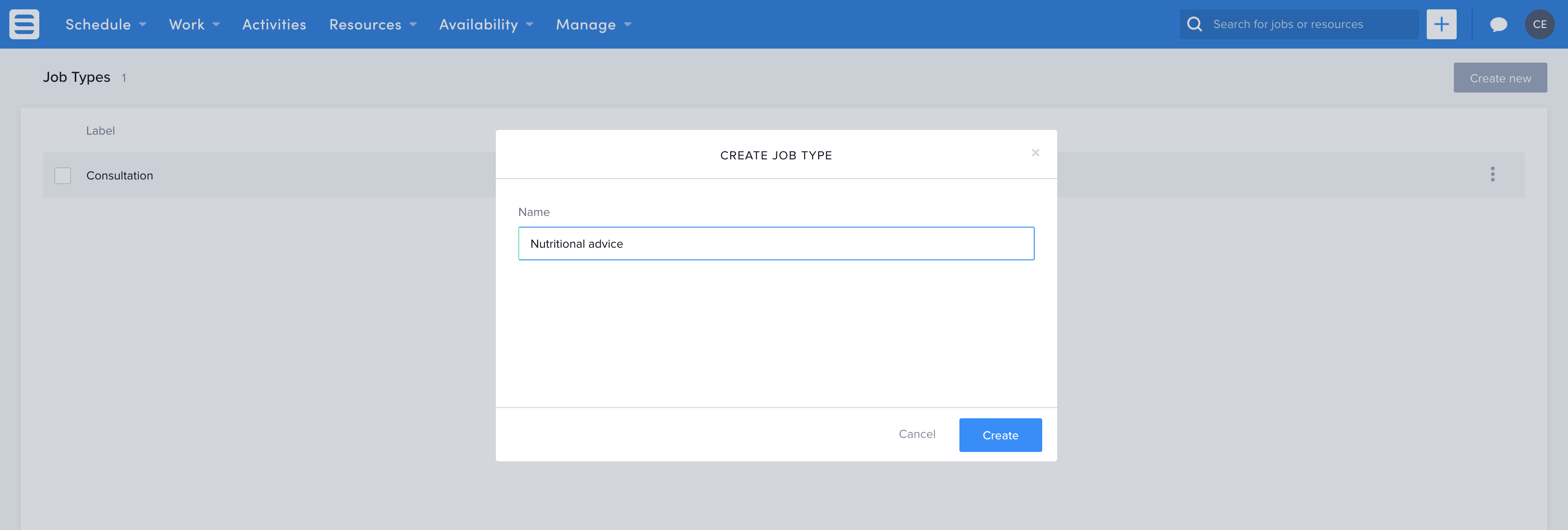
Simple right?! Well even though this part it simple, we are going to show you later in the course how job types can have templates to streamline the work creation phase, outlining pre-filled details against a job.
For customers using our pre-built solutions, such as the Australian Healthcare Solution, job types might already be set up and configured and you should not configure job types. If you are implementing Skedulo and have a Statement of Work that contains customisation, it is advised you consult with your implementation team to see what impacts changing the job types might have on your solution build.
Categorising the types of employees
After exploring the Deskless Productivity Cloud and the Skedulo Web App, Julia and Robert found that resources can be filtered, sorted and reported against using resource categories. Resource categories will serve useful to create resource list views, so they compile a list of different roles people have within their organisation and add them in as resource categories.
| Personal Trainer | Personal trainers cover services such as, mobile personal training, group fitness classes and office well-being sessions. Personal trainers can be allocate to multiple job types. |
| Nutritionist | Nutritionist cover services such as nutritional advice, office wellbeing and cooking classes. Nutritionists can be allocate to multiple job types. |
| Drivers | Our food waste management collection is a sub branch of the business. Their team leader needs the ability to filter and report on drivers to manage their schedules. |
| Vehicle | Our example company will be creating assets that represent vans used for food collection. This resource category will be used to filter and view vehicles. |
| Room | Our example company will be creating assets that represent rooms that are booked out for cooking classes at various locations. This resource category will be used to filter and view rooms. |
Creating resource categories
So Julia and Robert know how they want to categorise their deskless workers, so they jump into the Skedulo Web to start organising!
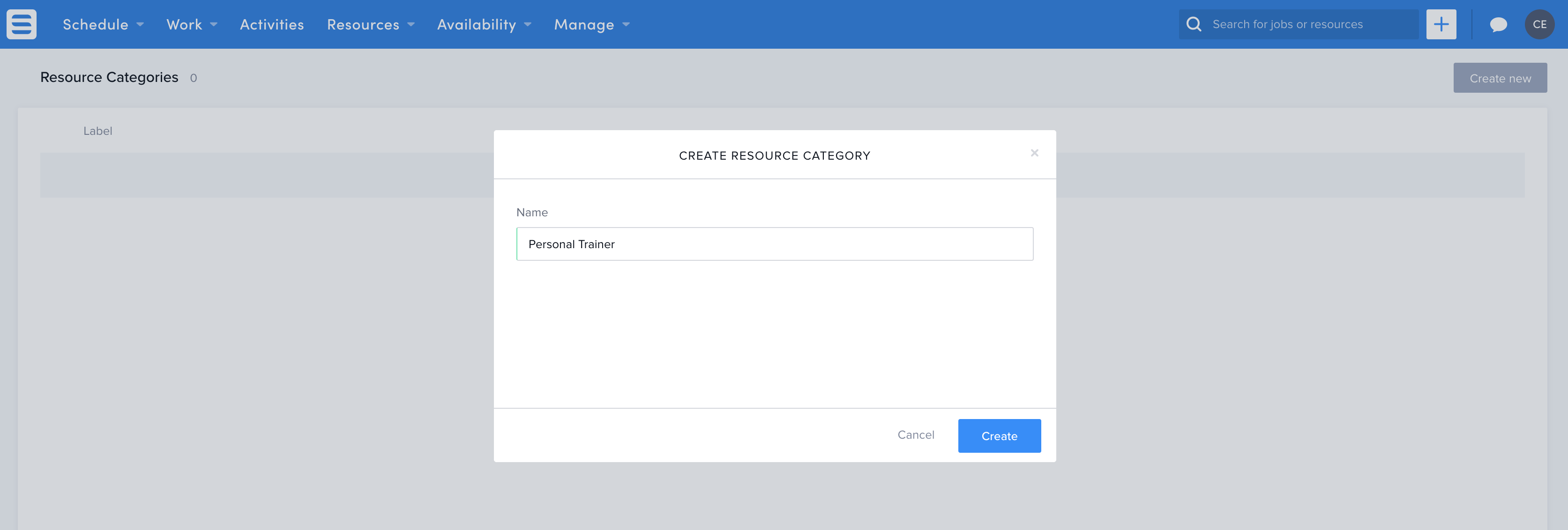
- Using the top navigation bar, click the ‘Manage‘ tab and select ‘Resource Categories‘.
- Click the ‘Create New‘ button in the top right corner.
- Fill out the form
- Click create and repeat the process until all resource categories have been created.
Defining your activity types
I Choose Me offers a range of services that brings revenue into the business but they also know that there are times when deskless workers need to perform various actions that are not directly related to a particular service. An activity can be used to book unscheduled actions and scheduled like jobs but are not customer-related. I Choose Me allow their staff to manage parts of their own schedule to perform administration duties and preparation time prior to delivering services or time to write reports post services. Julia and Robert consult with the business and find the following actions are performed throughout a given week by their deskless workers.
| Planning | Deskless workers are given preparation time for the day or coming week. The company would like to track this time to see how they can improve efficiency and provide assets to the team to optimise their time. |
| Career Development | I Choose Me have an employee benefit scheme that offers 1 hour a week to focus on their career development. |
| General administration | This activity type will be used for all general administration duties such as, reporting, schedule management and any other activity that take time out of their day. |
Creating activity types
So Julia and Robert know how they want to activity types they need, so they jump into the Skedulo Web to start organising!
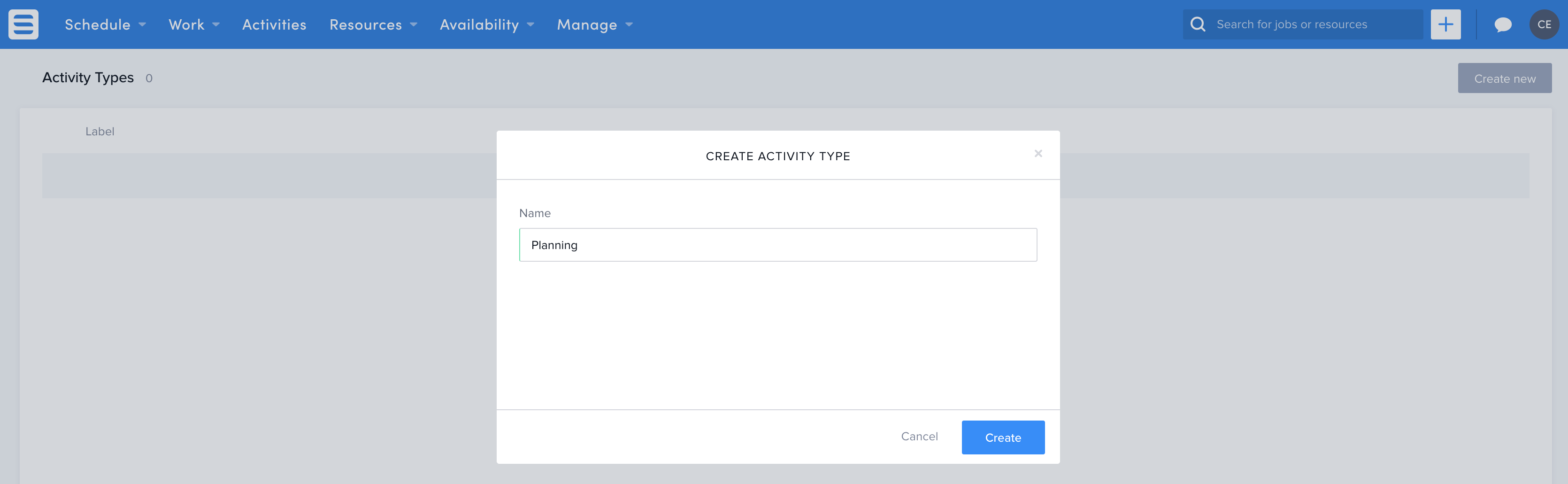
- Using the top navigation bar, click the ‘Manage‘ tab and select ‘Activity Types‘.
- Click the ‘Create New‘ button in the top right corner.
- Fill out the form
- Click create and repeat the process until all activity types have been created.
Defining your workers availability
Knowing when your workers are available for work is a critical aspect to effective deskless workforce management. Julia and Robert don’t want to just know when their workers are available or unavailable, they also want to know the reason for their request. Julia and Robert meet with the HR and scheduling team to talk about their requirements and came up with the following list.
When available
| Available | For deskless workers to define ad-hoc availability during normal working hours. For example, an employee doesn’t normally work on Wednesday but this week they are available to come in and want to inform the scheduling team. |
| Overtime | Used to define times when an employee would like some extra work outside of their normal working hours. The schedulers will use Skedulo inbuilt approval processes to approve or decline this request. |
| Weekend Work | This availability type was requested by the scheduling team, as they want to run quarterly reports on how many people are willing to work over the weekend to inform the Sales and Intake teams. |
When unavailable
| Unavailable | For deskless workers to define ad-hoc unavailability. For example, over the next month an employee can’t work on Wednesdays, so they create the unavailability record to inform the scheduling team. |
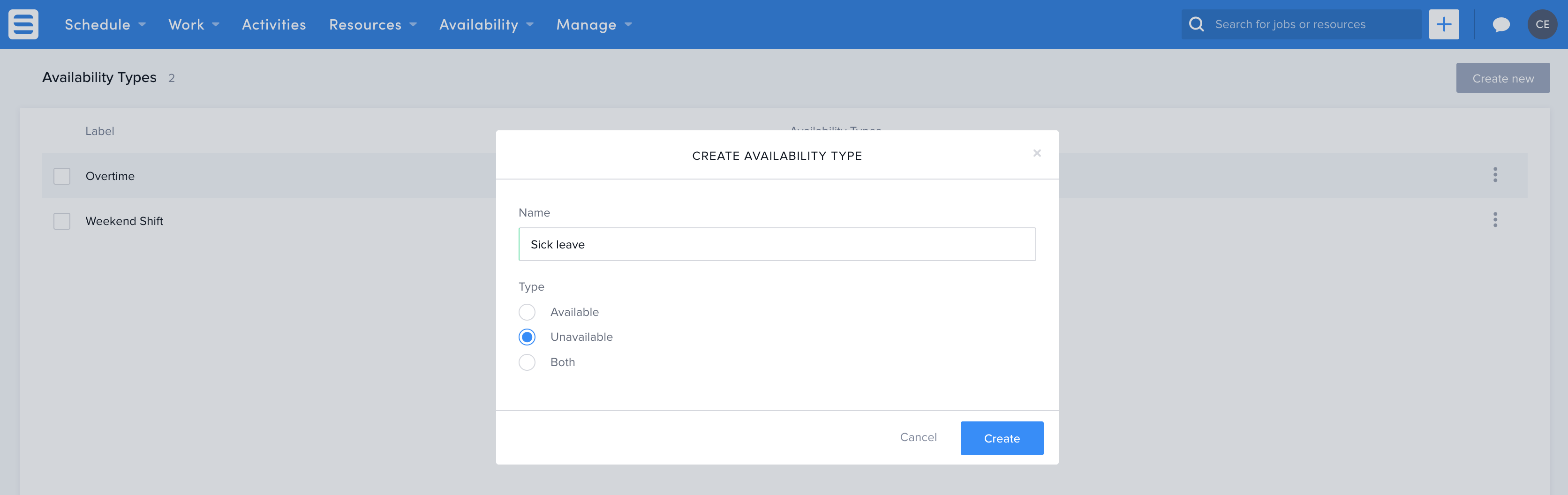
| Sick leave | Used when employees call in sick. This unavailability type will become quite useful for reporting purposes and is the first type of unavailability schedulers look through when they first come into the office for the day. |
| Annual leave | Used when employees request annual leave. The HR and operations team will have their own list view of this a unavailability, as they will be the ones approving it. |
| Workers compensation | Sometime employees can get injured on the job, after all they are personal trainers and sometimes subject to injury. The operations team would like to track the time taken from incurring an injury. |
Creating availability types
Julia and Robert know what the business needs are, so they jump into the Skedulo Web to start organising!
- Using the top navigation bar, click the ‘Manage‘ tab and select ‘Availability Types‘.
- Click the ‘Create New‘ button in the top right corner.
- Fill out the form and selecting the right availability type
- Click create and repeat the process until all availability types have been created.
Wrapping things up
Julia and Robert have completed the task of entering in all the base data required to start using their solution. They could technically start creating resource records and inviting deskless workers, but I Choose Me is looking to get the most out of their deskless workforce management solution and align it to their business needs. Julia and Robert still have a few things to do before they are ready to start inviting people and creating work.
In the next few lessons, you are going to explore how Julia and Robert enter in supporting data used to leverage a range of Skedulo capabilities and track customer interactions. They will also configure the workflow settings and manage the capabilities their deskless workers will experience in the mobile application.
Resources
- Regions – Skedulo knowledge base
- Job types – Skedulo knowledge base
- Resource categories – Skedulo knowledge base
- Activity types – Skedulo knowledge base
- Availability types – Skedulo knowledge base