

Learning Objectives
After this you will be able to;
- Explain what supporting data is used to leverage core Skedulo capabilities
- Create tags that support Skedulo optimisation and suggest capabilities
- Create location, account and contact records to better organise your work
What is supporting base data?
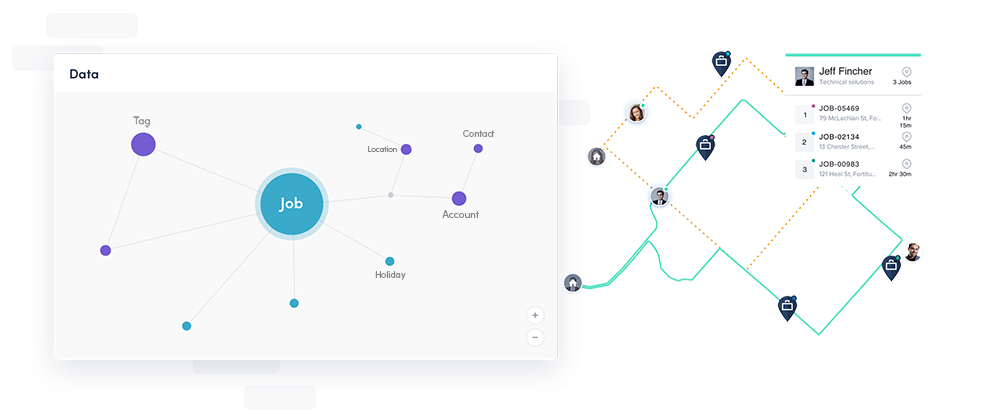
Fundamentally Skedulo is here to help you manage your deskless workforce and ensure you are meeting your customers needs. In order to successfully utilise Skedulo capabilities that empower your workforce, your solution will need the right supporting data. In this lesson we will dive into the types of data that help you to ensure you’re sending the right worker to job and structuring data that supports effective schedule management centred around locations, accounts and contacts. Supporting data is always evolving and changing as your business operates, so it is important to learn how to manage your supporting data for effective deskless workforce management.
Supporting base data is not required to start using your Skedulo solution, but various capabilities depend on the data being entered in prior to using them; such as work requirements, skipping holidays, location based scheduling and reporting.
Following on with ‘I Choose Me’
In the pervious lesson we followed along with Julia and Robert creating base data when setting up their Skedulo environment for I Choose Me. Julia and Robert created regions, categorised their resources, activity types and availability types. They are now ready to move onto the next stage to create their organisations supporting base data.
Using tags to leverage Skedulo optimisation
I Choose Me have a range of services that have been entered in as job types, however each service can have specific requirements that must be met in order to deleiver the work. Julia and Robert will create a number of tags that cab be allocated against jobs and used to define the requirements for the various types of services they offer.
Julia and Robert have defined a list of tags that will be used and have outlined their use case below.
| Vaccinated | This tag is added against jobs when customers request to only have resources that are fully vaccinated against COVID. |
| First Aid & CPR | All resources should be first aid and CPR certified. This tag will be allocated against all jobs as a requirement. The tag allocated against resources must also include an expiry date so the scheduling team are aware when refresher training is required, while also ensuring resources will not be recommended for work if it expires. |
| Personal Trainer | Allocated against the ‘Mobile personal training’ job type so that only personal trainers are suggested. |
| Group Trainer | Allocated against the ‘Group fitness’ job type so that only personal trainers who specialise in group classes are suggested. |
| Nutritional | Allocated against the ‘Nutritional advice’ job type so that only a Nutritionist is suggested. |
| Weight Loss | This tag is applied to jobs when a mobile personal training session, group fitness class or nutritional session is focused on weight loss. |
| Strength | This tag is applied to jobs when a mobile personal training session, group fitness class or nutritional session is focused on strength. |
| Cardio | This tag is applied to jobs when a mobile personal training session or group fitness class is focused on cardio. |
| Trainer | The I Choose Me ‘Office wellbeing’ service can be conducted by any resource in the organisation, provided they have done internal training and have the appropriate skillset. This tag is allocated against all jobs with the type as ‘Office wellbeing’. Resources who deleiver this service also require yearly refresher training, so an expiry date must be set against the resource tag. |
| Cooking Instructor | The I Choose Me ‘Cooking classes’ can be conducted by any resource in the organisation, provided they have done internal training and have the appropriate skillset. This tag is allocated against all jobs with the type as ‘Cooking Classes’. Resources who deleiver this service also require yearly refresher training, so an expiry date must be set against the resource tag. |
| Driver | Allocated against the ‘Food Waste Collection’ job type so that only drivers are suggested. |
| Drivers License | Allocated against all jobs types that require a resource to drive to clients house, customers office or collecting food waste. The drivers license expiry date must be set against the resource tag. |
Creating tag records
Julia and Robert have defined a list of tags that can now be entered into the solution.
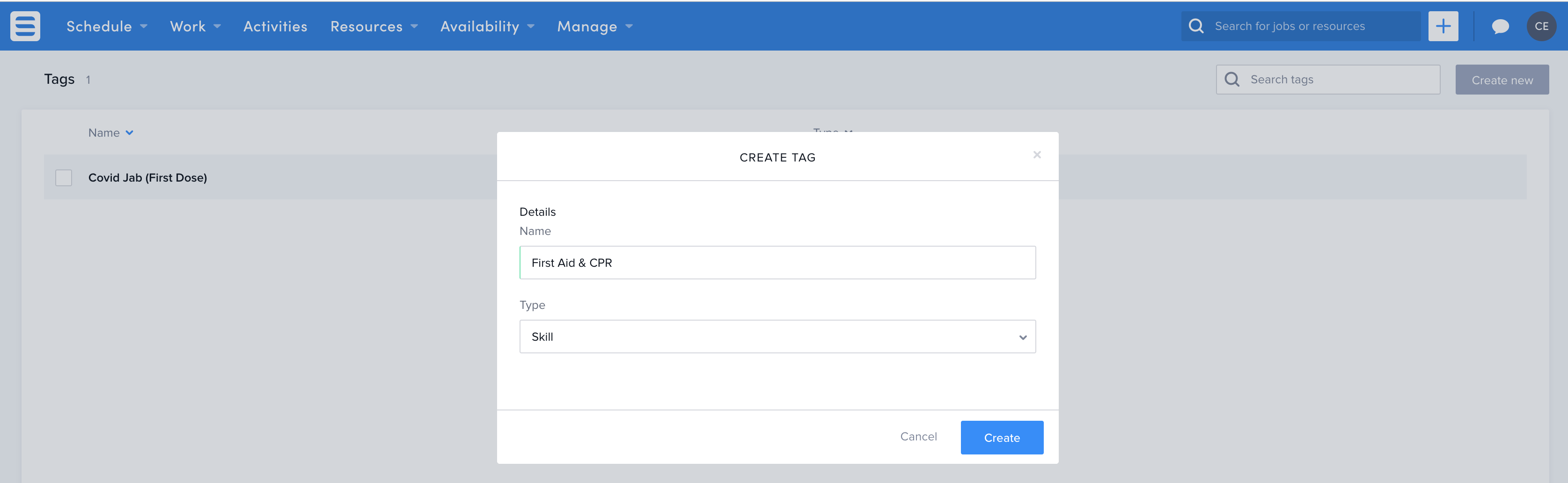
- Using the top navigation bar, click the ‘Manage‘ tab and select ‘Tags‘.
- Click the ‘Create New‘ button in the top right corner.
- Fill out the form with the required information
- Click create and repeat the process until all tag records have been created.
Using accounts and contacts to track customer interactions
When creating work you don’t always need to attach an account or contact, however Julia and Robert have found that data can be filtered and reported against more accurately when jobs link to an account or contact record. A jobs relationship with an account or contact record can auto apply an address to the job and also opens up other possibilities such as displaying contact information within the mobile application. Julia and Robert see that having account contact data as highly valuable and take the time to input the data.
Creating accounts
Julia and Robert had pulled a list of accounts and begin entering them in.
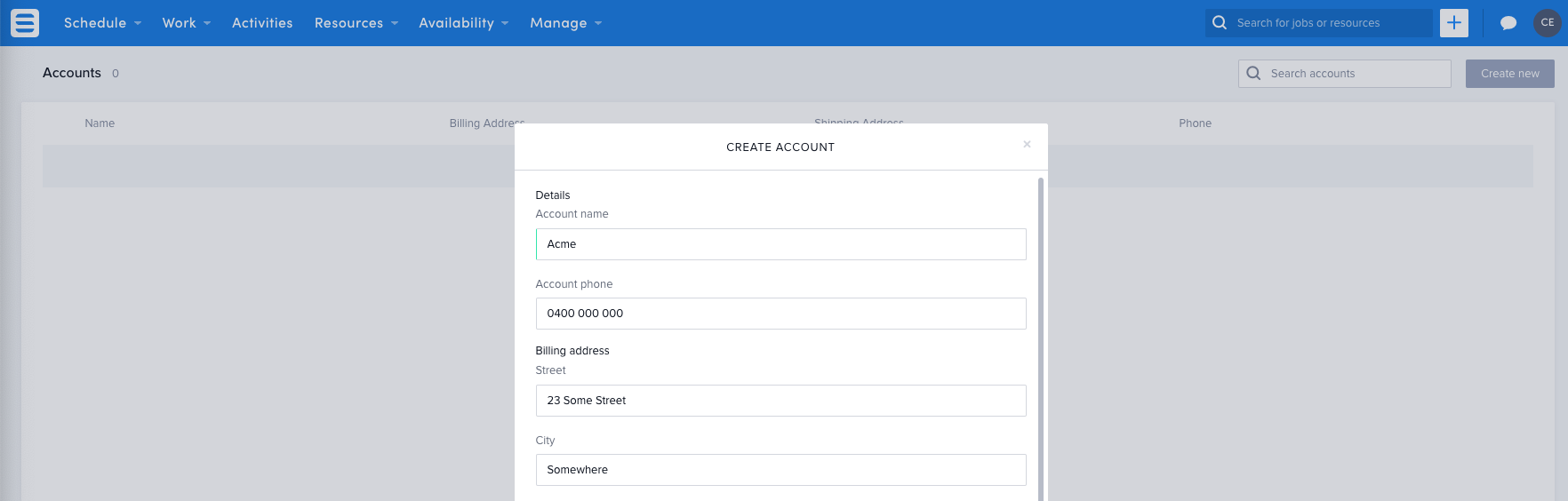
- Using the top navigation bar, click the ‘Manage‘ tab and select ‘Accounts‘.
- Click the ‘Create New‘ button in the top right corner.
- Fill out the form with all the necessary data.
- Click create and repeat the process until all your accounts have been created.
If you have a lot of Accounts and Contacts, you can use the Skedulo data loader to bulk create multiple records using a CVS file. For customers using Skedulo on Salesforce, you will need to use the Salesforce data loader tool instead.
For customers using Skedulo on Salesforce, Account and Contact creation can be managed directly in Salesforce. The Skedulo Web App will display accounts and contacts that is pulled from your Salesforce environment.
Creating Contacts
Julia and Robert had pulled a list of contacts and begin entering them in, linking them to the accounts they entered in the pervious step.
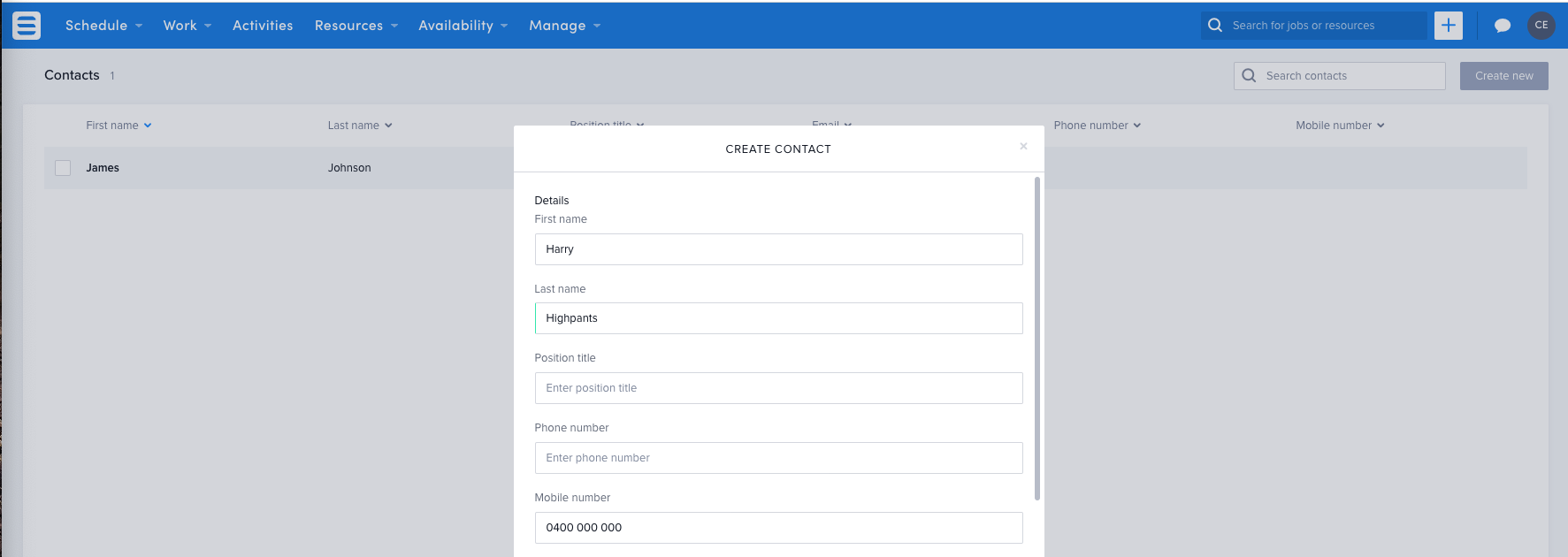
- Using the top navigation bar, click the ‘Manage‘ tab and select ‘Contacts‘.
- Click the ‘Create New‘ button in the top right corner.
- Fill out the form with all the necessary data.
- Click create and repeat the process until all your contacts have been created.
Using locations for addresses frequently being visited
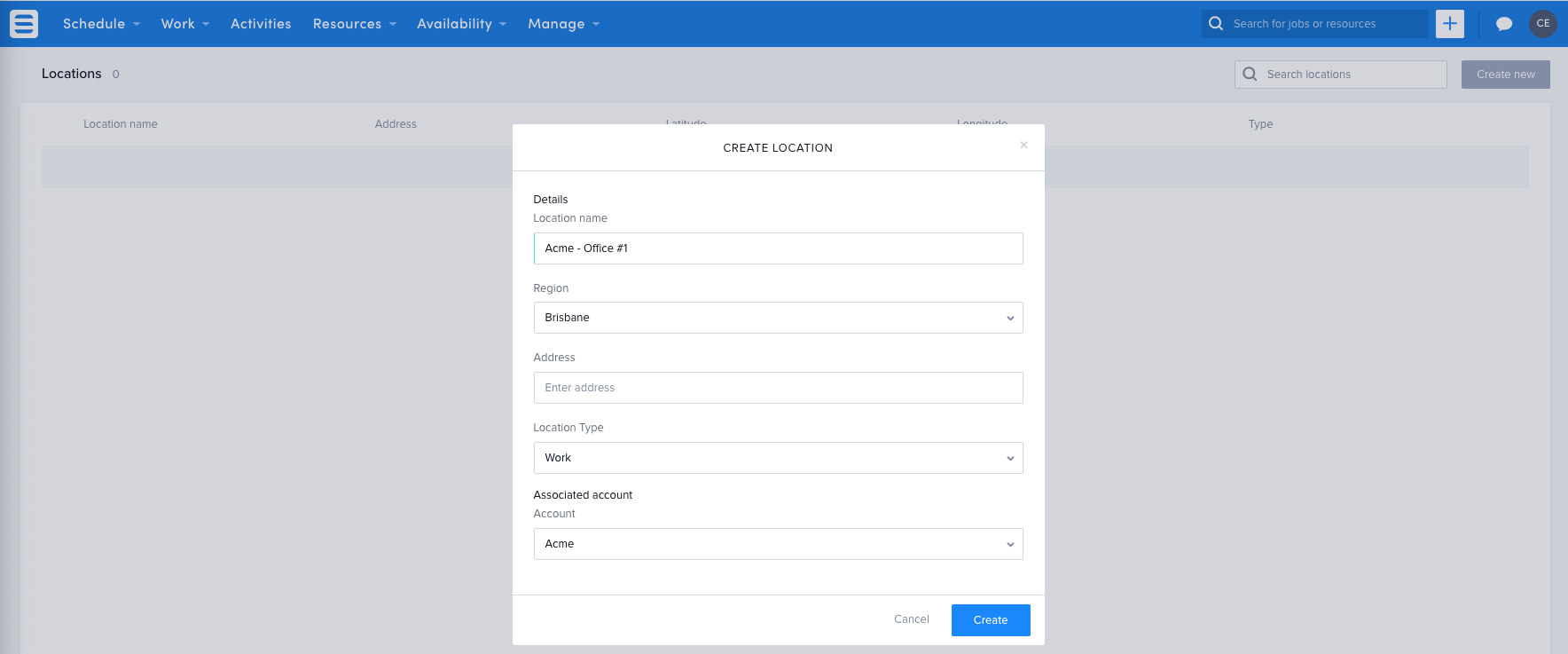
I Choose me has a lot of repeat business and work at a number of locations to deleiver their services. For example, their Office Wellbeing service is conducted at customer office’s around the city, with one account having multiple locations utilising their services. Julia and Robert have found that multiple location records can be attached to accounts helping to streamline scheduling and viewing work from a location perspective, also known as location based scheduling.
Because Julia and Robert have already entered in all the account records, they can now leverage the capabilities location records offer by entering the records into the system, attaching them to the exisiting account records.
Creating locations
Julia and Robert get to work, adding in all the account location records.
- Using the top navigation bar, click the ‘Manage‘ tab and select ‘Locations‘.
- Click the ‘Create New‘ button in the top right corner.
- Fill out the form
- Click create and repeat the process until all location records have been created.
Defining holidays for effective work management
I Choose Me don’t offer any services on public holidays, they give their staff the time off to have some well deserved downtime. When one off jobs get entered into the system, the schedulers know not to create any work on a public holiday but it can get complicated when creating recurring supports, as a scheduler doesn’t always know if one of the recurring jobs will fall on a public holiday. Julia and Robert have learnt all about holiday records and found that Skedulo can skip public holidays when recurring schedules are being created. Wanting to leverage this simple but useful feature, Julia and Robert enter in all the public holidays into the system.
Holidays by region
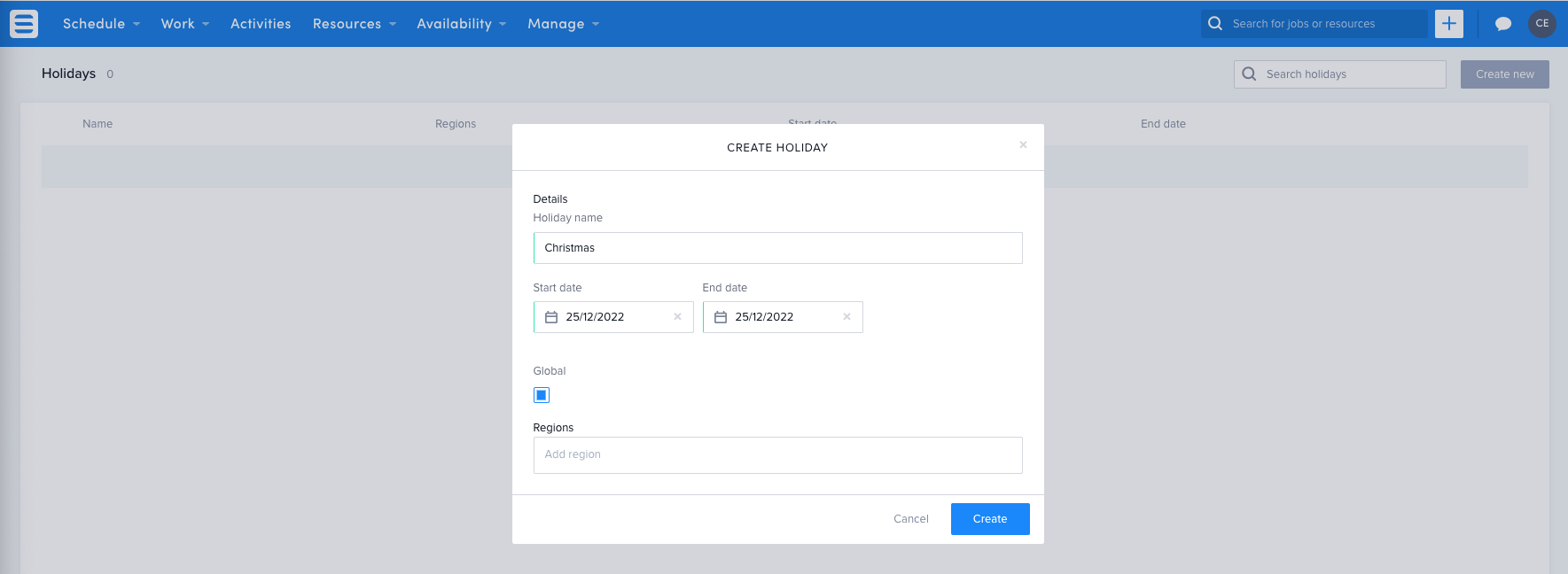
Holidays can be applied to specific regions. This serves very useful for I Choose Me as they operate in two different countries. For example, Thanksgiving has only been applied to USA regions and Australia Day has only been applied to Australian regions.
Creating holiday records
Julia and Robert jump online to see what dates the holidays are for the year ahead and enter them into the system.
- Using the top navigation bar, click the ‘Manage‘ tab and select ‘Holidays‘.
- Click the ‘Create New‘ button in the top right corner.
- Fill out the form
- Click create and repeat the process until all holiday records have been created.
Wrapping things up
Julia and Robert have completed the task of entering in their supporting data for effective deskless workforce management and the utilisation of core Skedulo capabilities. Some of the data that was entered in during this lesson will need to be continually updated and maintained, so Julia and Robert have set up various business processes for their team for when new tag, account, contact, location and holiday records need to be created.