
After this you will be able to;
- Discribe the various configuration options when creating resources
- Create resource records for your deskless workers
Creating resource records
Access the resource list view
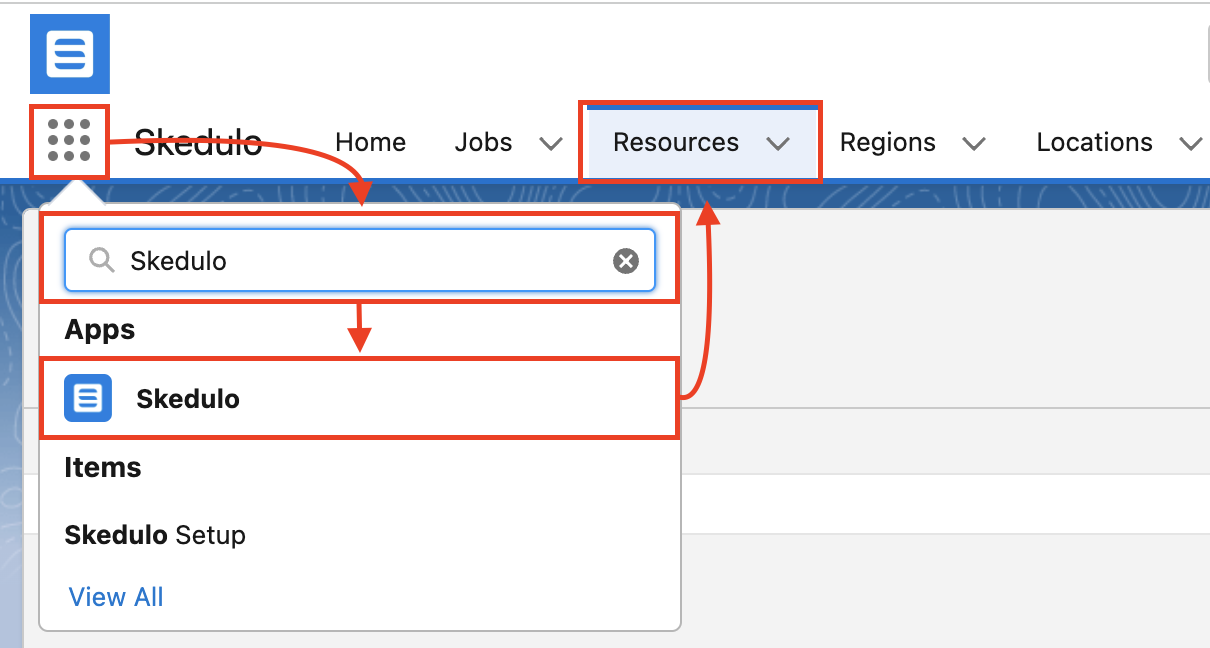
- Log into Salesforce
- Click the ‘App Launcher’ in the top left corner
- Search for and select the ‘Skedulo’ lightning app
- In the top navigation bar, click on the ‘Resources’ menu item
For the Skedulo on Salesforce solution, all deskless workers will require a user record and a resource record to access the mobile application. In the pervious lesson ‘Creating Salesforce users‘ we explored the steps needed to set up a user record, that included setting up a user record for a resource. When creating a resource record, you will need to link it to a corresponding user record, therefore it is more productive for you to create your user records prior to creating your resource records.
Linking a user and resource record
Create a new resource record
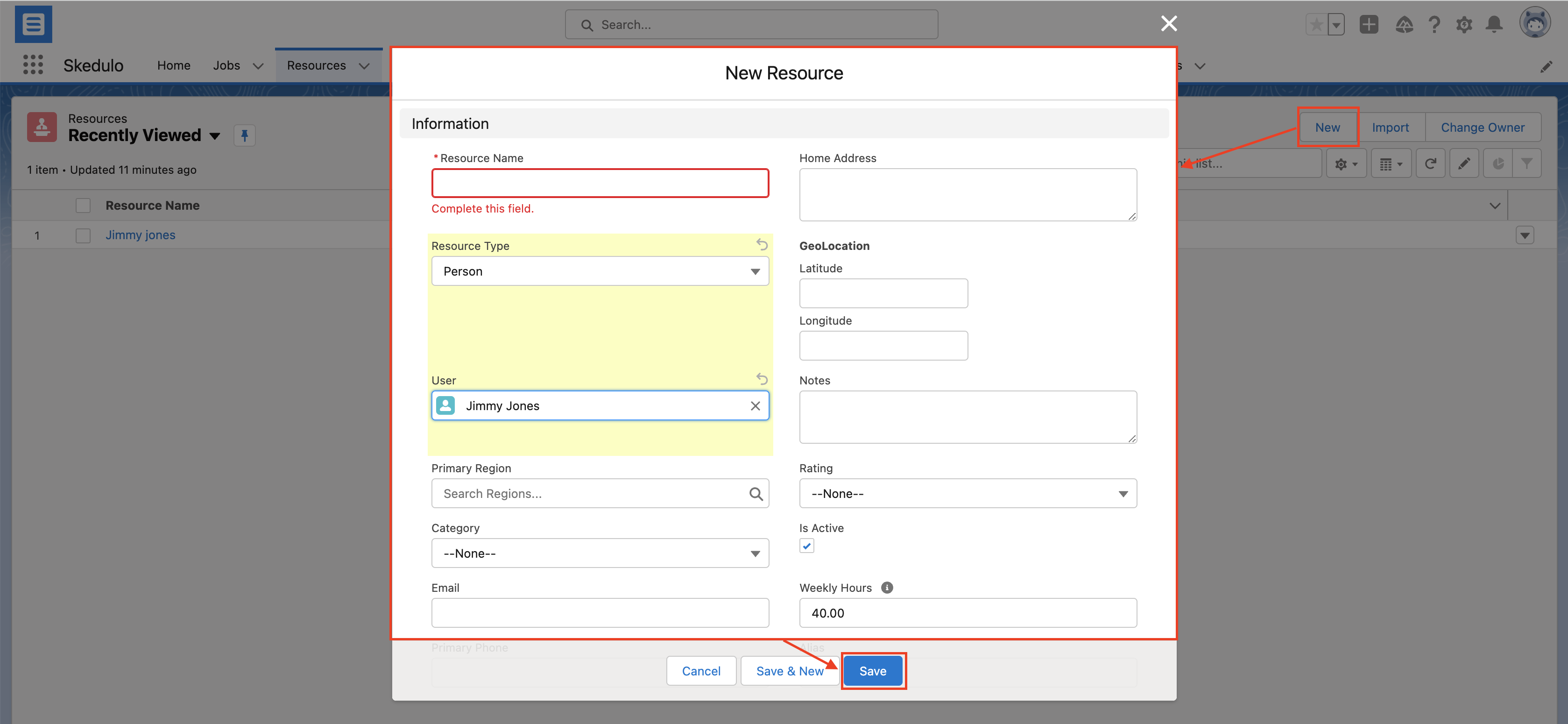
While viewing the resource list view inside of Salesforce;
- Click the ‘New’ button in the top right corner
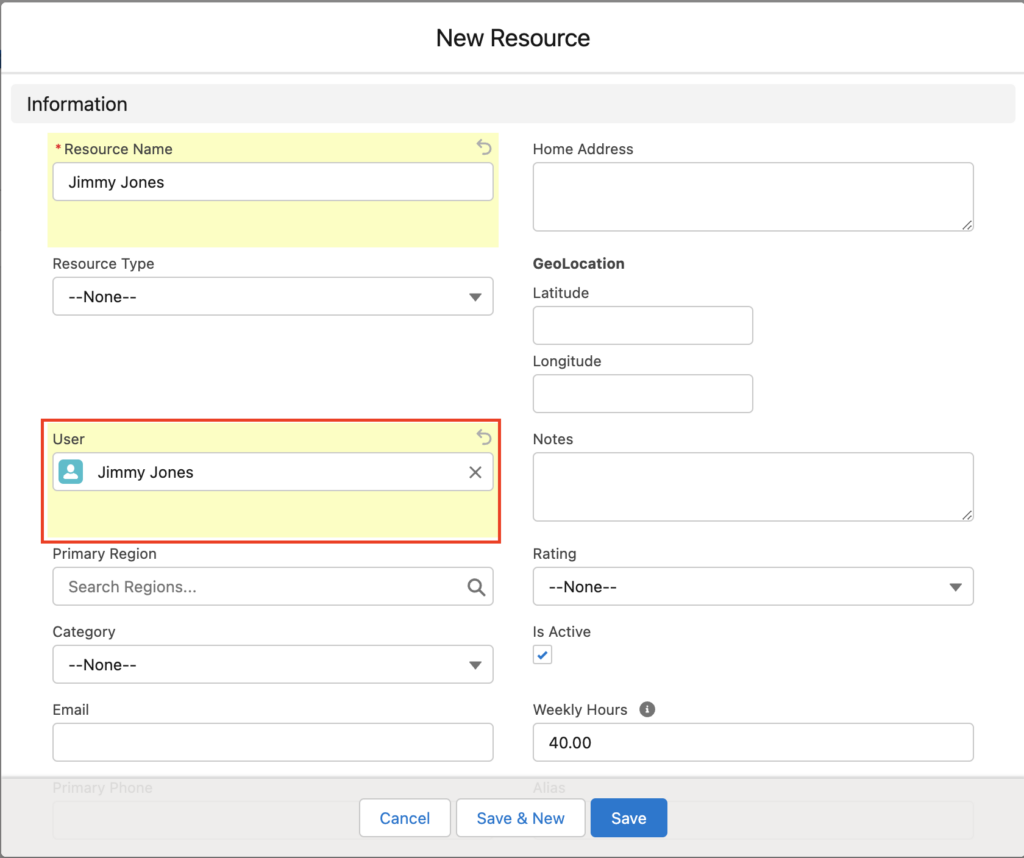
- Fill out the ‘Resource name’ field
- Search and select the corresponding user record in the ‘User’ field

Choosing the resource types
When creating a resource record there are two types for you to choose from using the dropdown field ‘Resource Type’.
| Person | This type is used for deskless workers that need to access the mobile application. This is the type you should select in this exercise. |
| Asset | Represents a physical assets, such as vehicles, mechanical plant, or medical equipment. Assets require geographical data and a working hour type. |
Both types represent a resource, have their own availability records and can be allocated against jobs to meet job requirements. Inside of the Web App, we offer filter options for schedulers to switch between the two resource types.
Populating geographical data
When schedulers are using the Skedulo suggest engine to find the right worker for the job, the following geographical data against the resource record is used.
| Primary region | Defines the primary region the resource works in. When jobs are created, they are required to have a region defined. During the allocation process, resources with the same primary region as the job will be shown. Resources can also have multiple secondary regions that can be allocated against a resource inside the Web App. |
| Home address | During the allocation process, the home address against the resource is used to calculate the distances to be travelled. When a home address is populated and the record saved, Skedulo will automatically populate the Latitude and Longitude fields against the resource record. |
Setting up notification preferences
When work is dispatched or updated for a given resource, Skedulo will use the following fields against the resource record to push out the notification.
| Notification type | If the notification type is set to push, Skedulo will use in app push notifications to notify the deskless worker. If the notification type is set to SMS, Skedulo will use the resource ‘Mobile Number’ to push out SMS notifications to the deskless worker. It is important to note that deskless workers can update this option from within the mobile application. |
| Mobile Phone | If the notification type is set to SMS you must have a mobile number populated against this field, or else the deskless worker will not receive any notifications. |
| Country code | This field is required for both notification types. Skedulo will use this country code to ensure notifications are sent and routed correctly. |
Choosing the working hour type
An important but often overlooked field against the resource record is the ‘Working Hour Type’ field. This field is used to define what records Skedulo will reference when defining when a deskless worker can be allocated to work. If this field is not populated correctly, the resource will not be suggested for work during the allocation process.
| Availability | Skedulo will use a resources availability records to define when the can and can’t work. |
| Shift | Skedulo will only suggest the resource if a job falls within a deskless workers shift record. |
The shift console is deactivated by default and will need to be turned on by a Web App administrator if you wish to use shifts as the working hour type.
We advise you check out the following articles in our knowledge base to learn more;
- Working Hours – Skedulo Knowledge Base
- Creating and managing shifts – Skedulo Knowledge Base
- Admin Settings: General – Skedulo Knowledge Base (Activate shifts)
Create a new resource record
While viewing the create resource model;
- Fill out the form ensuring the following fields are populated
- Name
- Resource type = Person
- User
- Primary region
- Mobile number
- Notification type
- Country code
- Working hour type
- Home address
- Click the ‘Save’ button at the bottom